


Secure Shopping
Products from authorized providers at fair prices.
The latest addition to the Counter-Strike series, Counter-Strike 2, or simply CS2, has made its way into the gaming world. In this article, we will guide you step by step on how to display FPS in CS2
Valve released the latest game in the Counter-Strike series, Counter-Strike 2 (CS2), in 2023, and it received significant attention in the gaming community. However, many players are wondering how to view the game's FPS (Frames Per Second) values. In this article, we will explain the methods to display FPS in CS2 step by step, allowing you to enjoy a better gaming experience.
There are two different methods to view FPS values in the Counter-Strike 2 (CS2) game. The first method involves using the in-game developer console, while the second method allows you to configure it through the Steam interface. Now, let's explain the process of displaying FPS in CS2 using both methods in detail.
Method 1: Displaying FPS in CS2 Using the Developer Console
If you want to see how many FPS you are getting in CS2, you can do so by using the developer console. Here's how to do it step by step:
Step 1: Launch CS2.
Step 2: Click on the "Settings" icon in the top menu.
Step 3: Go to the "Game" tab.
Step 4: Set the "Enable Developer Console" option to "YES."
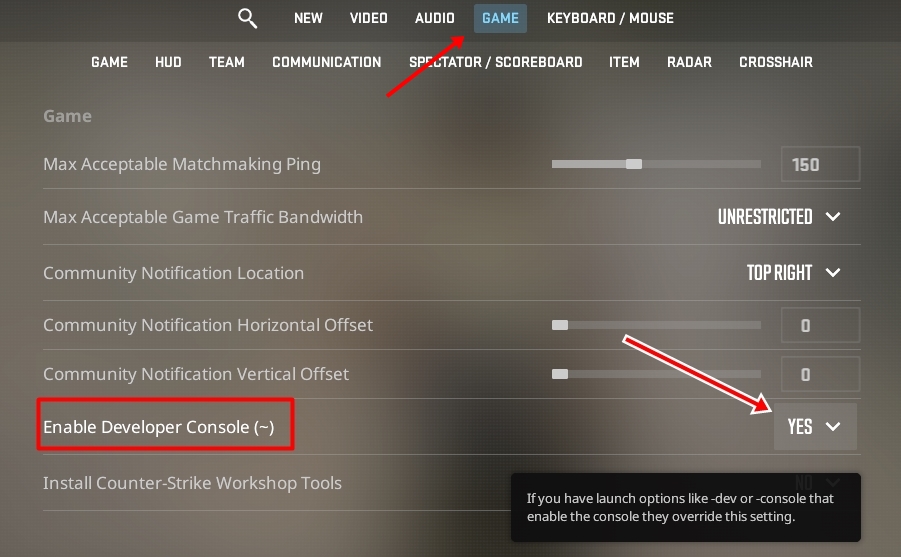
Step 5: Switch to the "Keyboard/Mouse" tab.
Step 6: Assign a key to the "Toggle Console On/Off" function.
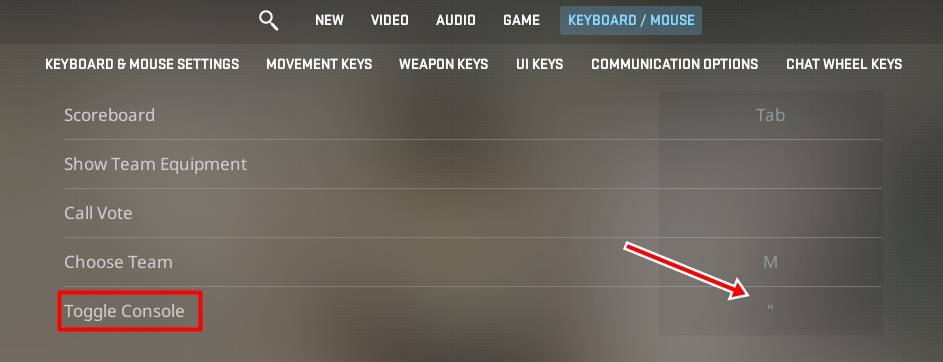
Once you have enabled the developer console, follow these steps:
Step 7: Press the assigned key to open or close the developer console.
Step 8: When the developer console is open, type the command "cl_showfps 1" into the text box.
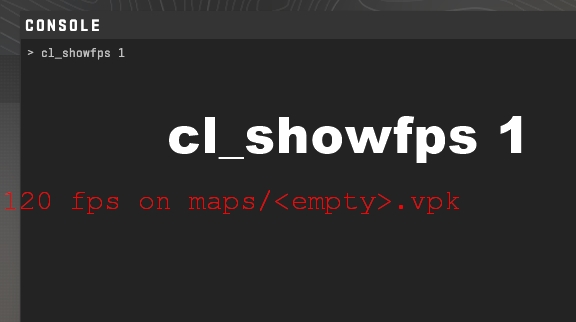
Step 9: You will now see the FPS value show on the screen.
.
Method 2: Show CS2 FPS Through the Steam Interface
Another method to see the FPS value in CS2 is to use the Steam interface. Here's how to apply this method step by step:
Step 1: While the game is open, press "Shift + TAB" simultaneously to open the Steam overlay.
Step 2: Click on the "Settings" icon.
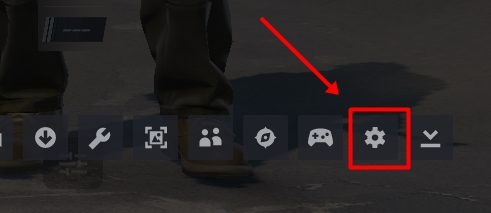
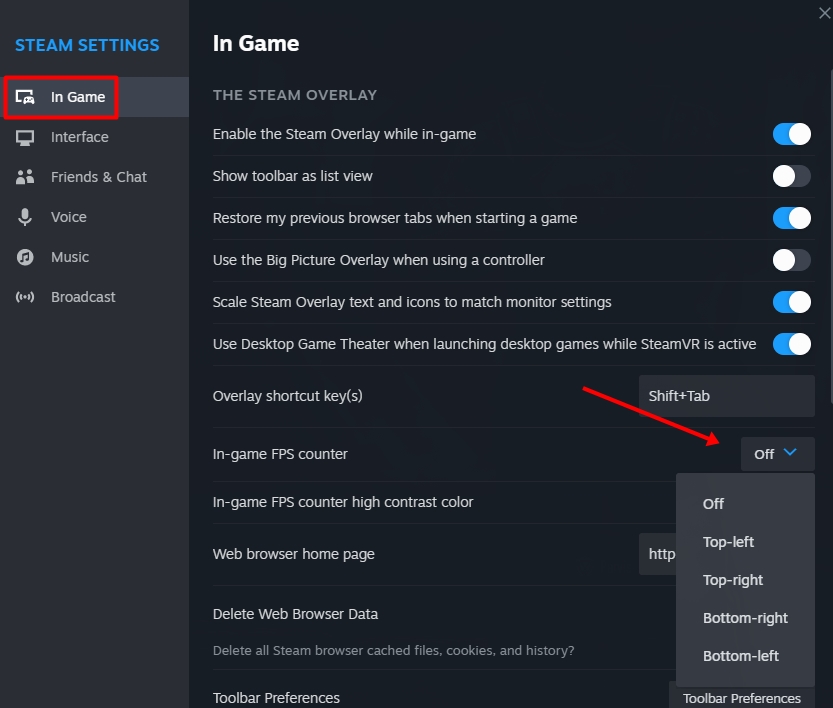
Step 3: In the opened Settings window, navigate to the "In-Game" section
Step 4: Choose the position where you want to display the FPS value in the "In-Game FPS Counter" section.
if you want to check your FPS while playing Counter-Strike 2, you can use one of the two methods mentioned above. This guide will help you with show FPS in CS2. The Lotkeys team is here to assist you in enhancing your gaming experience.
 Silent Hill Remake Targets 2027: First Two Cast Members Leaked
Silent Hill remake is rumored for 2027, with the first two cast members revealed. Here’s what’s known so far, and what’s still a mystery.
 Emberville Delayed One Day Before Launch: Early Access Now on January 7, 2027
Cygnus Cross has delayed Emberville just one day before launch. Early Access is now set for January 7, 2027. We break down the reasons for the delay and what to expect from the game.
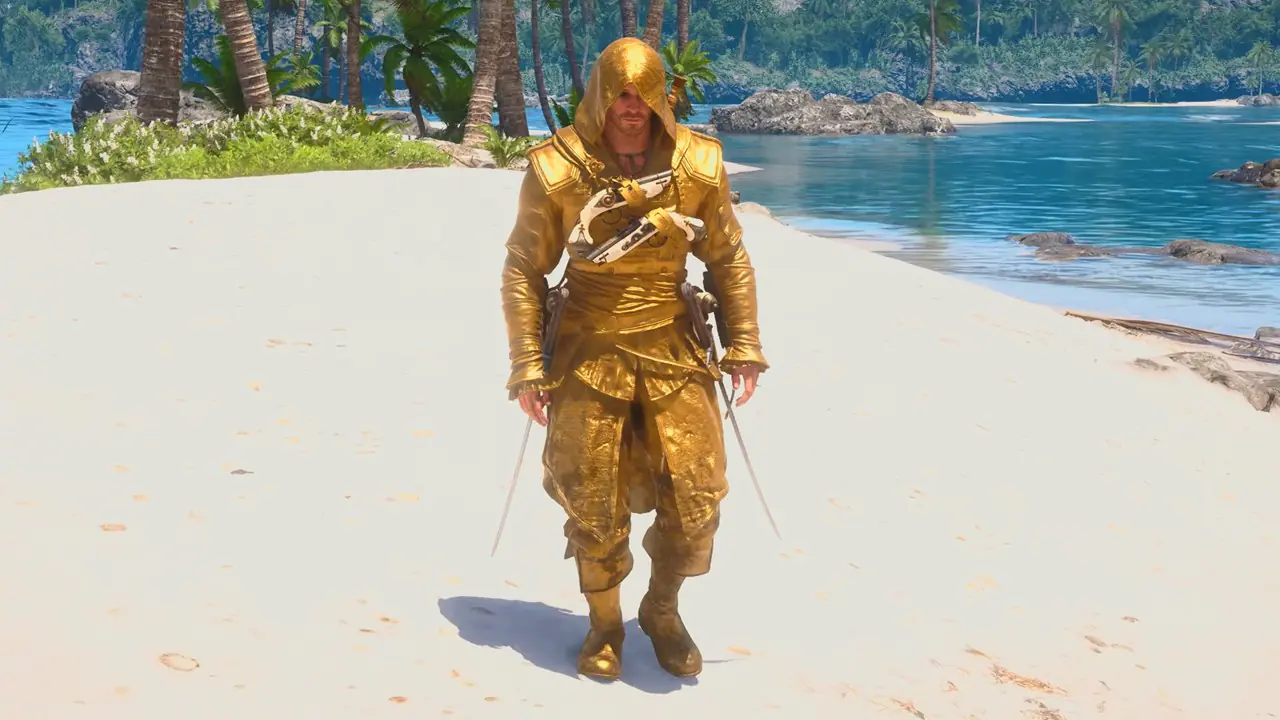 Final Major Update Arrives for AC Black Flag Resynced: New Game+ and Nightmare Mode
Assassin's Creed Black Flag Resynced 1.0.8 brings New Game+, brutal Nightmare difficulty, and classic assassination animations. Here's what's new at a glance.
 Golden Joystick Awards 2026: Game of the Year Nominees Revealed and Voting Now Open
The 12 nominees for Ultimate Game of the Year at the Golden Joystick Awards 2026 have been announced. From Phantom Blade Zero to Resident Evil Requiem, see the full list and all voting dates.
 Xbox Game Pass Joins T-Mobile: Ultimate and Premium Now on T-Mix Plans
T-Mobile’s new T-Mix plans launch in November, letting you pick Xbox Game Pass Ultimate or Premium as a plan perk. Here’s how it works.
 Steam Next Fest October 2026 Ends Today: Top 20 Most Played Demos
Steam Next Fest ends today. Valve's list of most played demos is dominated by co-op games. Check out all 20 demos and their genres here.
Products from authorized providers at fair prices.
24-Hour Nonstop and Fast Delivery Service.
24/7 Support Center
100% Satisfaction Guaranteed