

Secure Shopping
Products from authorized providers at fair prices.
Getting a graphics card error when launching Metin2? Here’s how to solve it instantly.
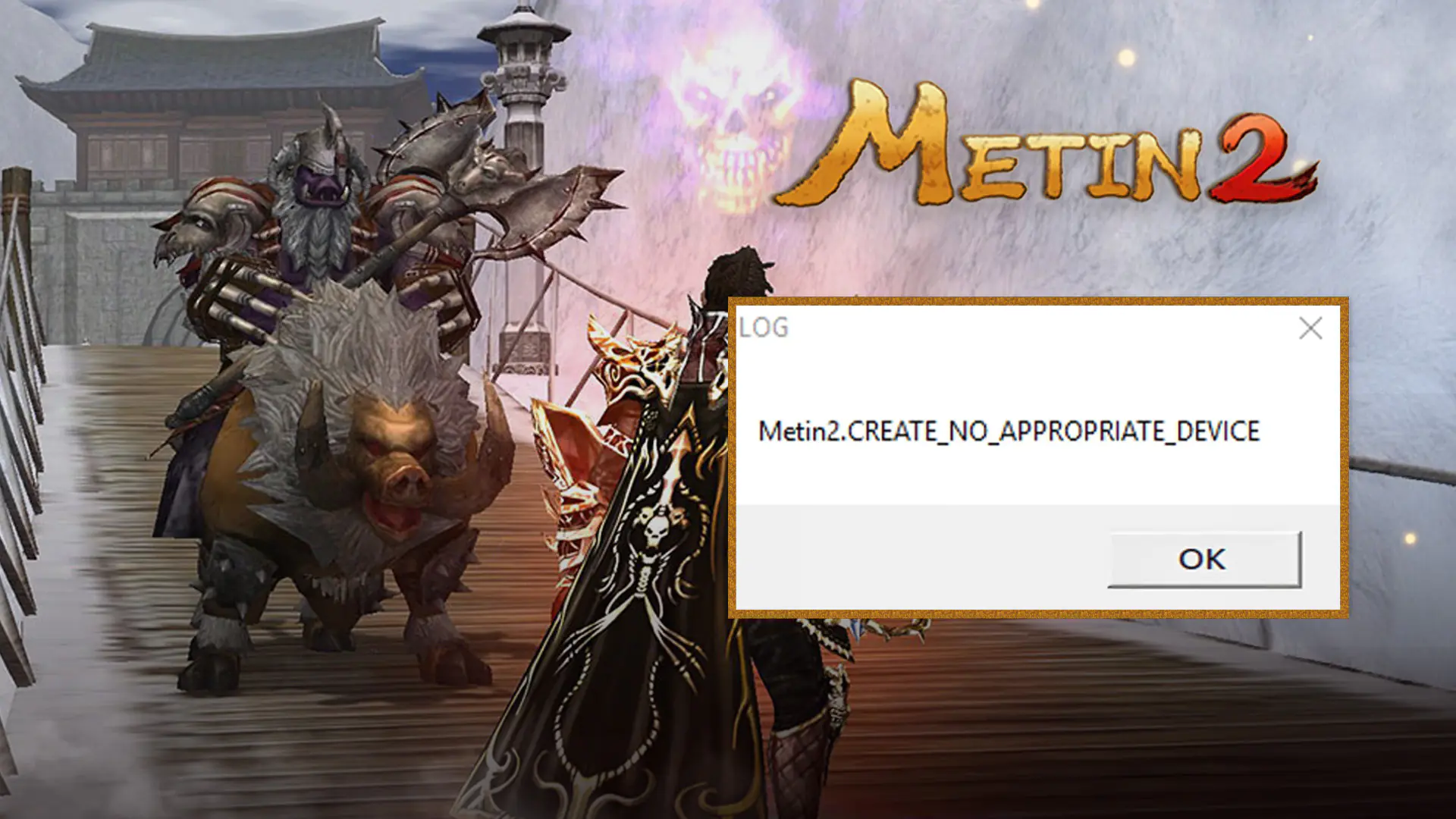
Encountering the "Create No Appropriate Device" error while stepping into the legendary world of Metin2 means your game isn’t connecting properly with your graphics card. This issue usually happens because Metin2 relies on an outdated DirectX version and isn’t configured for modern systems.
This error shows that the game engine can’t recognize your current graphics card as a "suitable display device." To solve the problem completely, follow these steps in order:
| Method | How To Apply |
| 1. Compatibility Mode | Right-click on metin2client.exe > Properties > go to the Compatibility tab. Set the "Run this program in compatibility mode for" option to Windows 7 or Windows 8 and check "Run as administrator." |
| 2. Adjust Config Settings | Open the config.exe file in your game folder. Set the "Resolution" to match your desktop (e.g., 1920x1080). If the error persists, try running the game in Window Mode. |
| 3. Override DPI Settings | In metin2client.exe properties, click "Change high DPI settings." Check "Override high DPI scaling behavior" and select **"System"** from the dropdown menu below. |
If the above steps don’t work, you may need to update some "legacy" libraries on your PC:
DirectX End-User Runtime: Metin2 requires some old DirectX 9 components that aren’t included with modern systems. Download and install this package from Microsoft’s official site to fix the error in most cases.
Graphics Card Drivers: Make sure your Nvidia or AMD drivers are up to date. If you’re on a laptop, ensure Metin2 is set to run with your "Dedicated Graphics" instead of "Integrated Graphics" (Intel) by selecting the game in your graphics settings and choosing "High Performance".
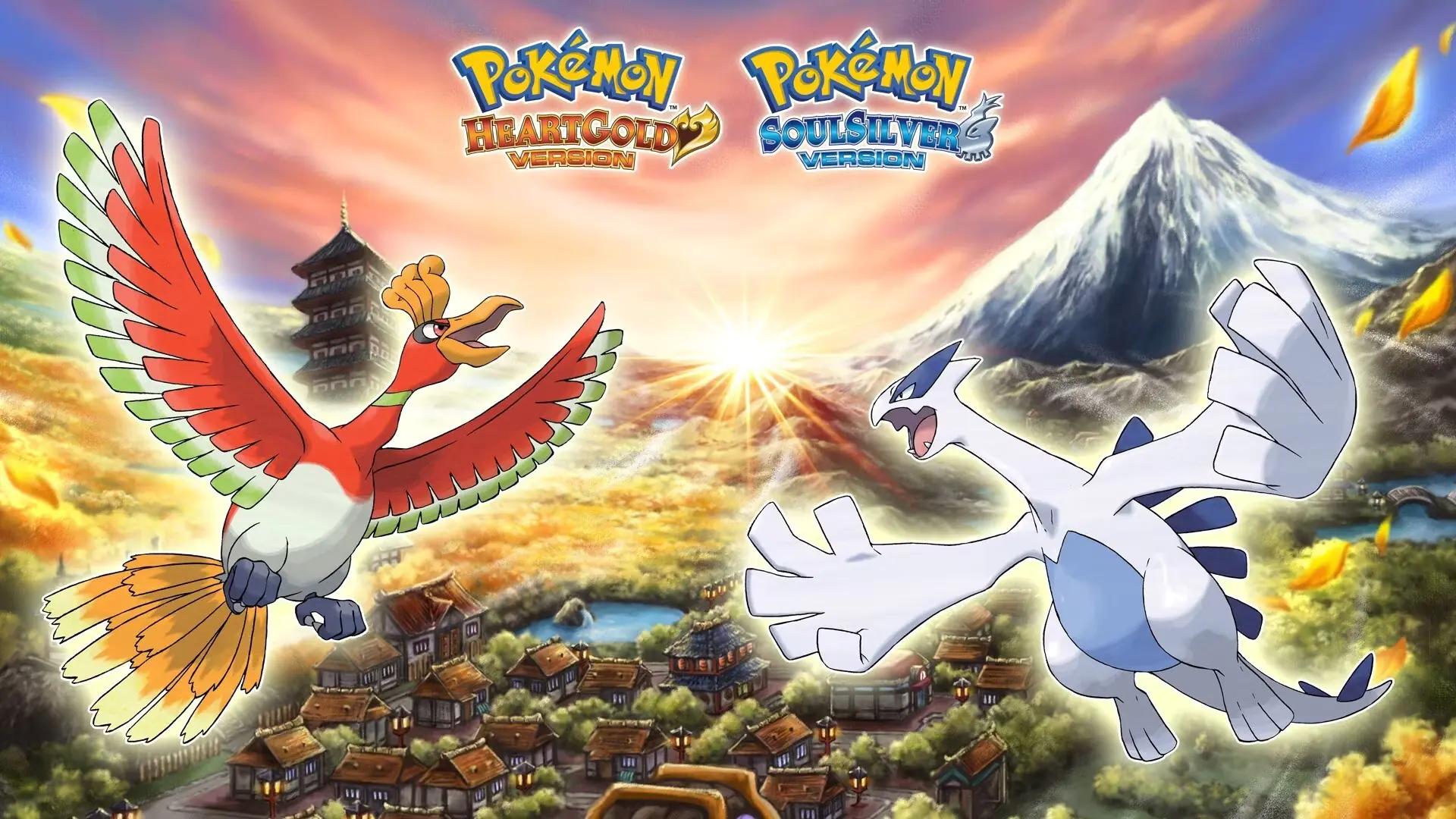 Pokémon 30th Anniversary Art Book Arrives December 18: 9 Generations, 3 Volumes, 1,500 Pages
The three-volume Pokémon 30th Anniversary Art Book series, overseen by Game Freak, launches in Japan this December. See which games are covered and all the details here.
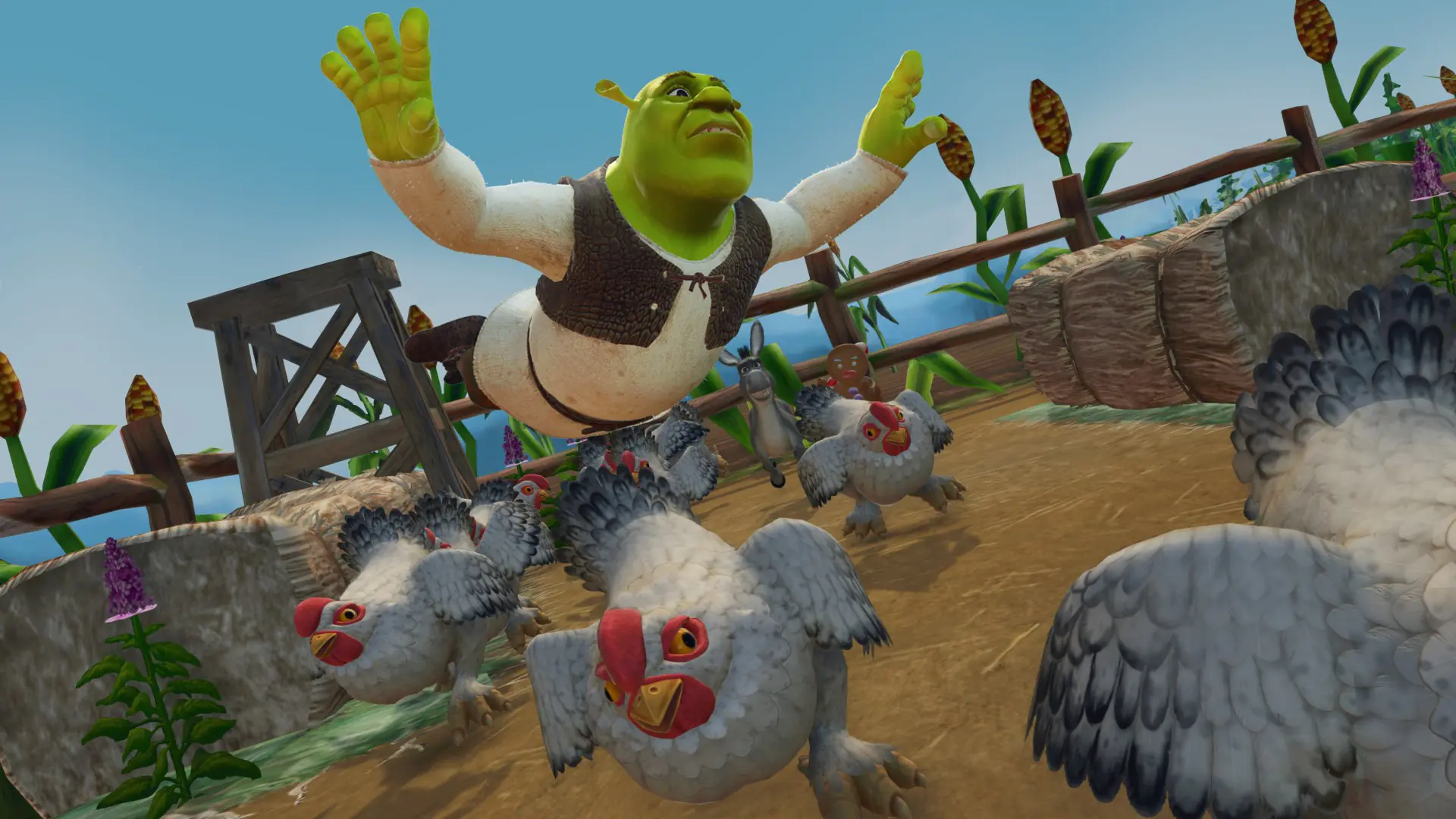 Shrek 2 Remastered Leaked: Aspyr's Remaster Spotted on Xbox Store
Shrek 2 Remastered leaked ahead of its announcement on the Xbox Store. Discover all the known details about the remaster, including 4K support, photo mode, and online four-player co-op.
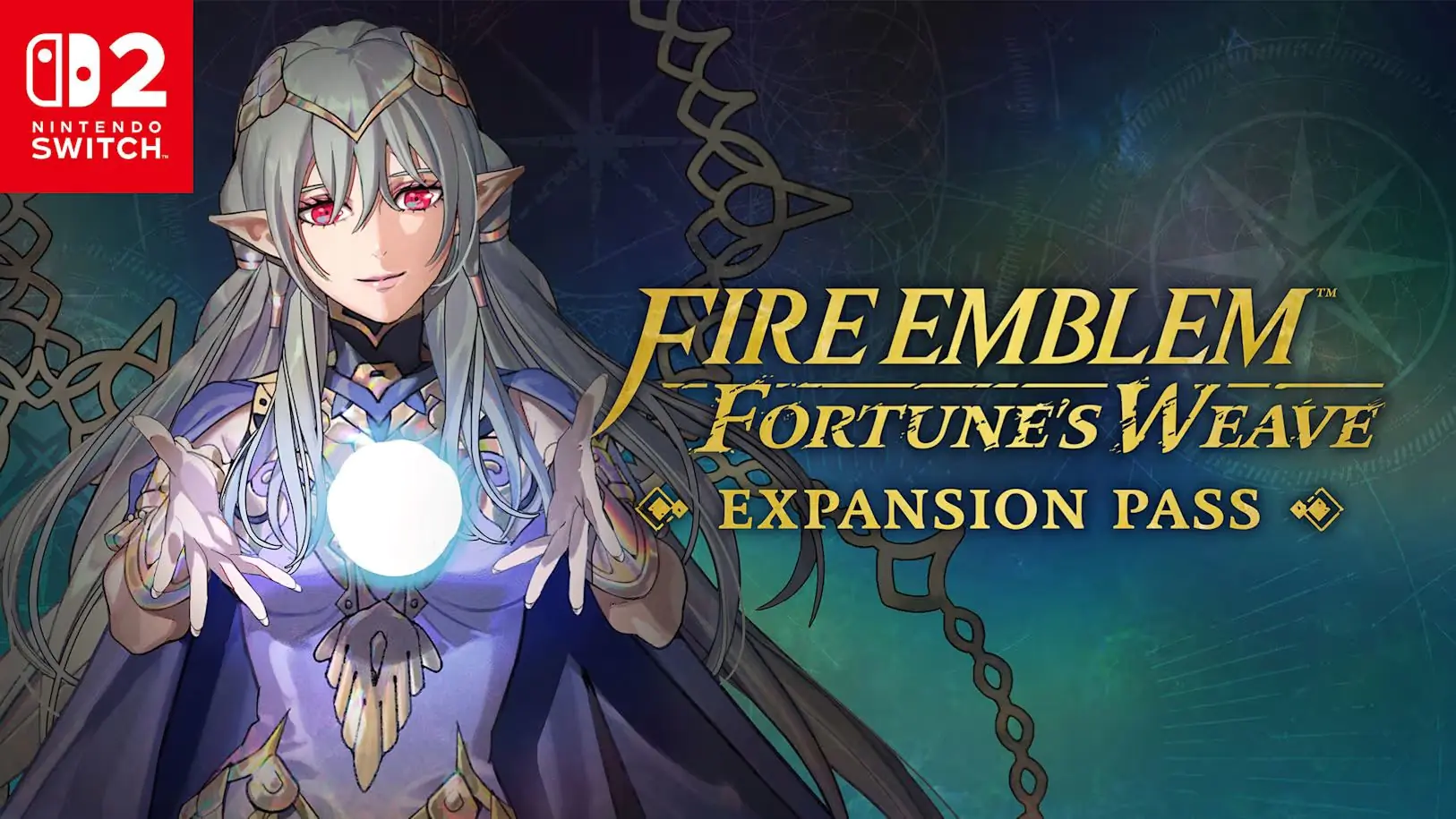 Fire Emblem: Fortune’s Weave Paid Expansion Pass Now Available
Fire Emblem: Fortune’s Weave Expansion Pass is out now. Wave 1 brings four prototype weapons. Discover what’s coming in Wave 2 and Wave 3 in this guide.
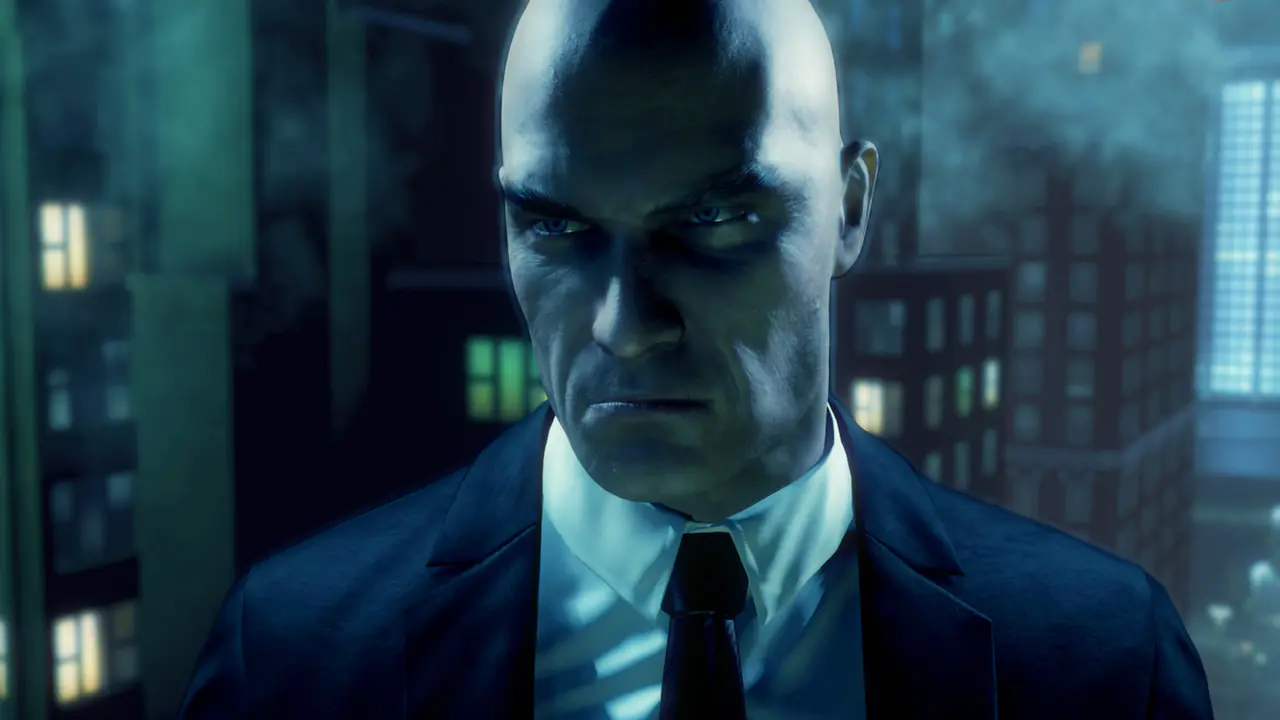 Hitman: Absolution Is Coming to Switch 2
Hitman: Absolution Nintendo Switch 2 Edition launches October 22. Discover the new features, including enhanced resolution, 60 fps performance, Contracts mode, and free upgrade details for Switch owne
 Galaxies Autumn Showcase 2026: All Game Reveals and Release Dates
Discover all the games announced at the Galaxies Autumn Showcase, including The Finals update, Hellraiser Revival, Frosthaven 1.0, new release dates, and playable demos.
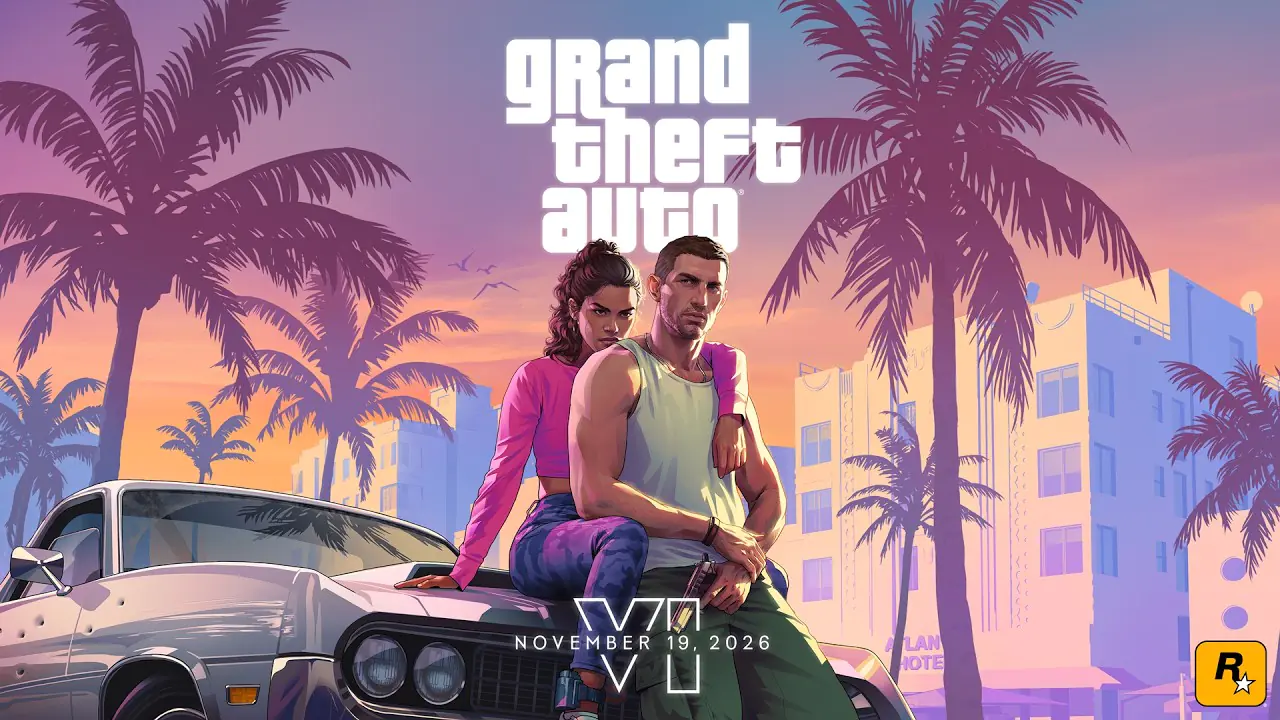 9 Standout Details from the GTA 6 Launch Trailer
Rockstar’s GTA 6 launch trailer is here: release date, pre-load info, Jason and Lucia’s backstory, the soundtrack, and 9 key highlights.
Products from authorized providers at fair prices.
24-Hour Nonstop and Fast Delivery Service.
24/7 Support Center
100% Satisfaction Guaranteed