

Secure Shopping
Products from authorized providers at fair prices.
Getting a graphics card error when launching Metin2? Here’s how to fix it for good.
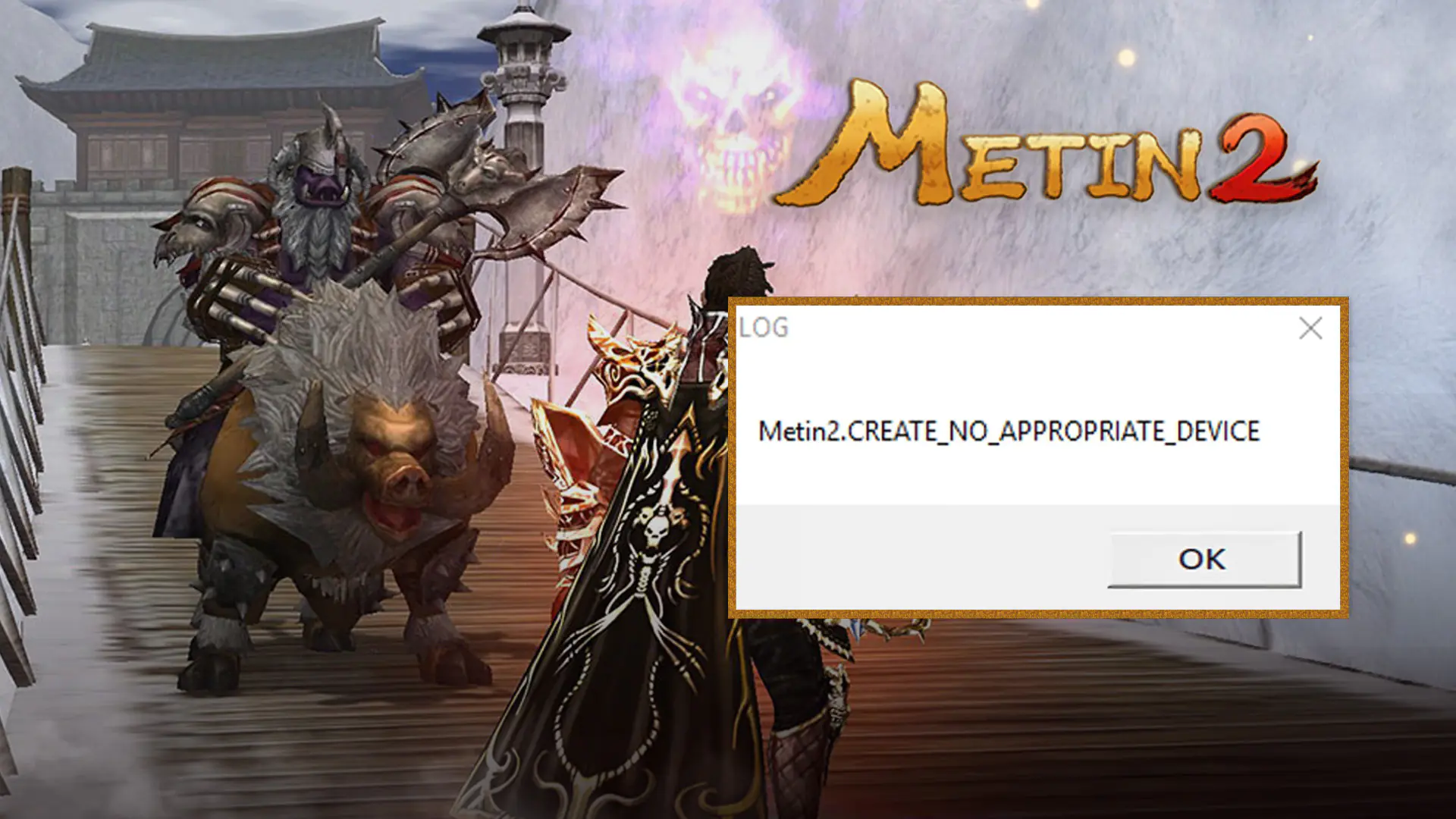
When stepping into the legendary world of Metin2, the "Create No Appropriate Device" error means your computer's graphics card isn't connecting properly with the game. This usually happens because Metin2 is built on an old DirectX version that may not be configured correctly on modern systems.
This error indicates that the game engine can't recognize your current graphics card as a "suitable display device." To solve it for good, follow these steps in order:
| Method | How to Apply |
| 1. Compatibility Mode | metin2client.exe Right-click > Properties > go to the Compatibility tab. Set "Run this program in compatibility mode" to Windows 7 or Windows 8 and tick "Run as administrator." |
| 2. Edit Config Settings | Open the config.exe file in your game folder. Set the "Resolution" to match your desktop resolution (e.g., 1920x1080). If the error persists, try running the game in Window Mode. |
| 3. Override DPI Settings | In metin2client.exe properties, click on "Change high DPI settings." Tick the box for "Override high DPI scaling behavior" and select **"System"** from the dropdown menu. |
If the steps above don't work, you may need to update some essential libraries on your PC:
DirectX End-User Runtime: Metin2 requires certain older DirectX 9 components that are not included in modern systems. Download and install this package from Microsoft's website to fix the error in most cases.
Graphics Card Drivers: If you use Nvidia or AMD, make sure your drivers are up to date. For laptops, ensure Metin2 runs with the "Dedicated GPU" instead of the "Integrated Graphics" (Intel) by selecting Metin2 in your graphics settings and assigning it as "High Performance."
 WoW Forever Beta Kicks Off This Week: How to Get Access
WoW Forever beta starts September 17. Is pre-ordering required for guaranteed access, or does free registration work?
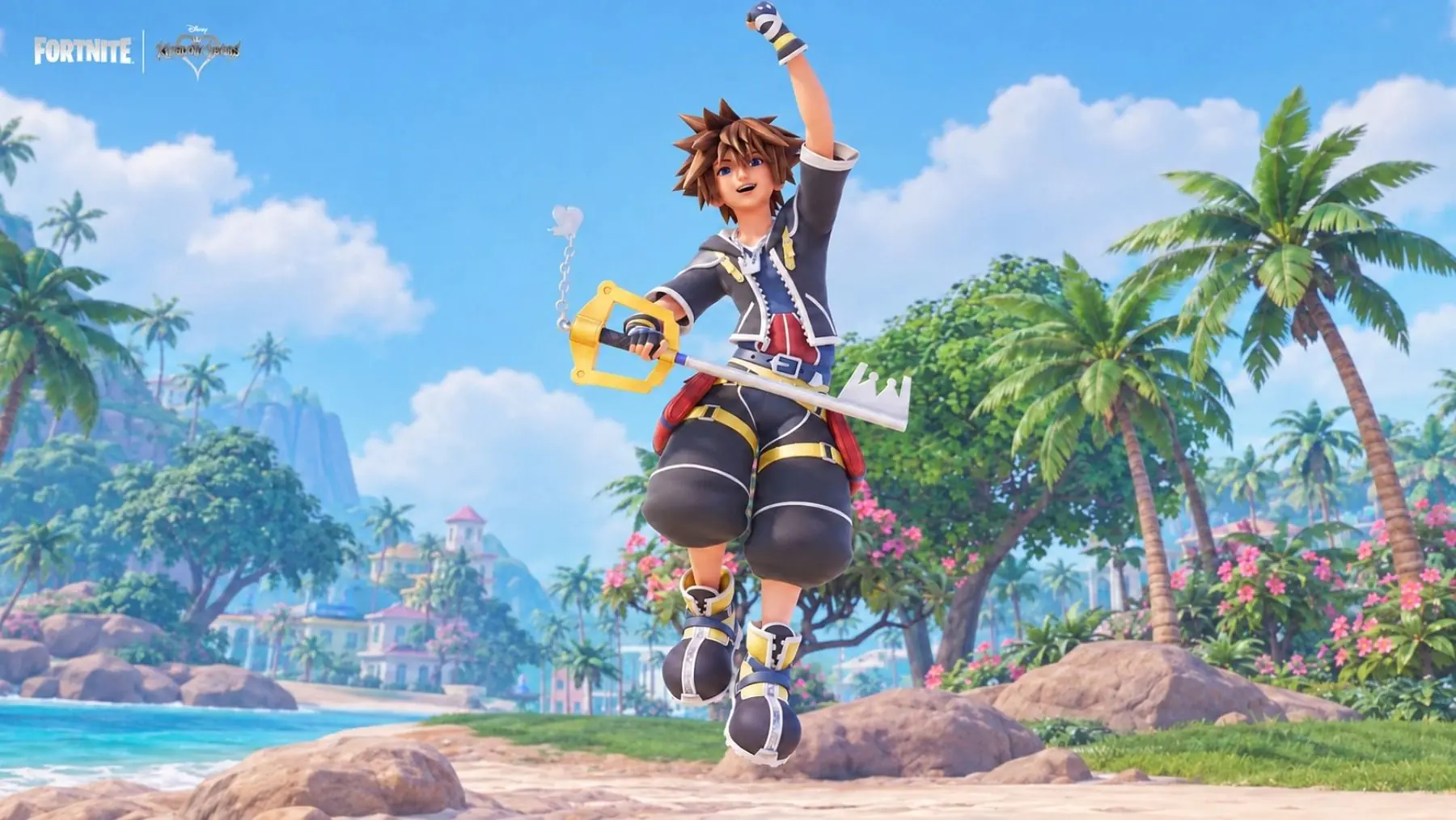 Fortnite x Kingdom Hearts: Sora Skin and More Arrive This Week
Epic Games has officially confirmed the Kingdom Hearts collaboration after months of rumors. Sora is coming to Fortnite, with Kairi, Riku, and Roxas also strongly teased.
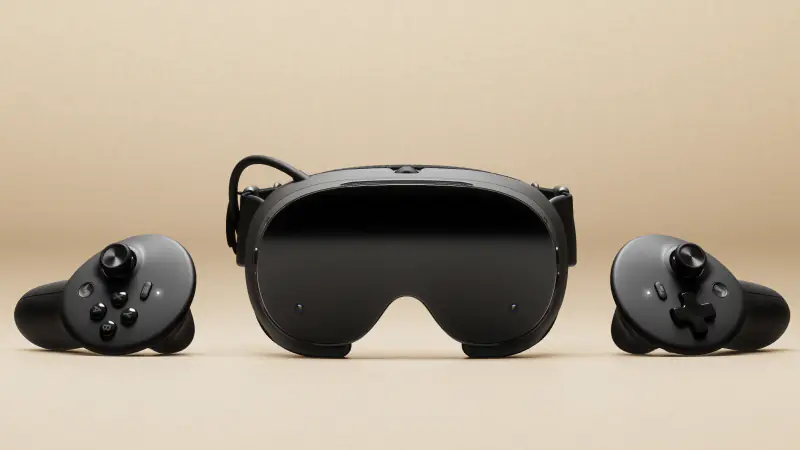 Steam Frame Review: Comfort Meets High Price
Valve’s new standalone VR headset, Steam Frame, earns praise for comfort and performance, but its $1,059 price tag raises big questions.
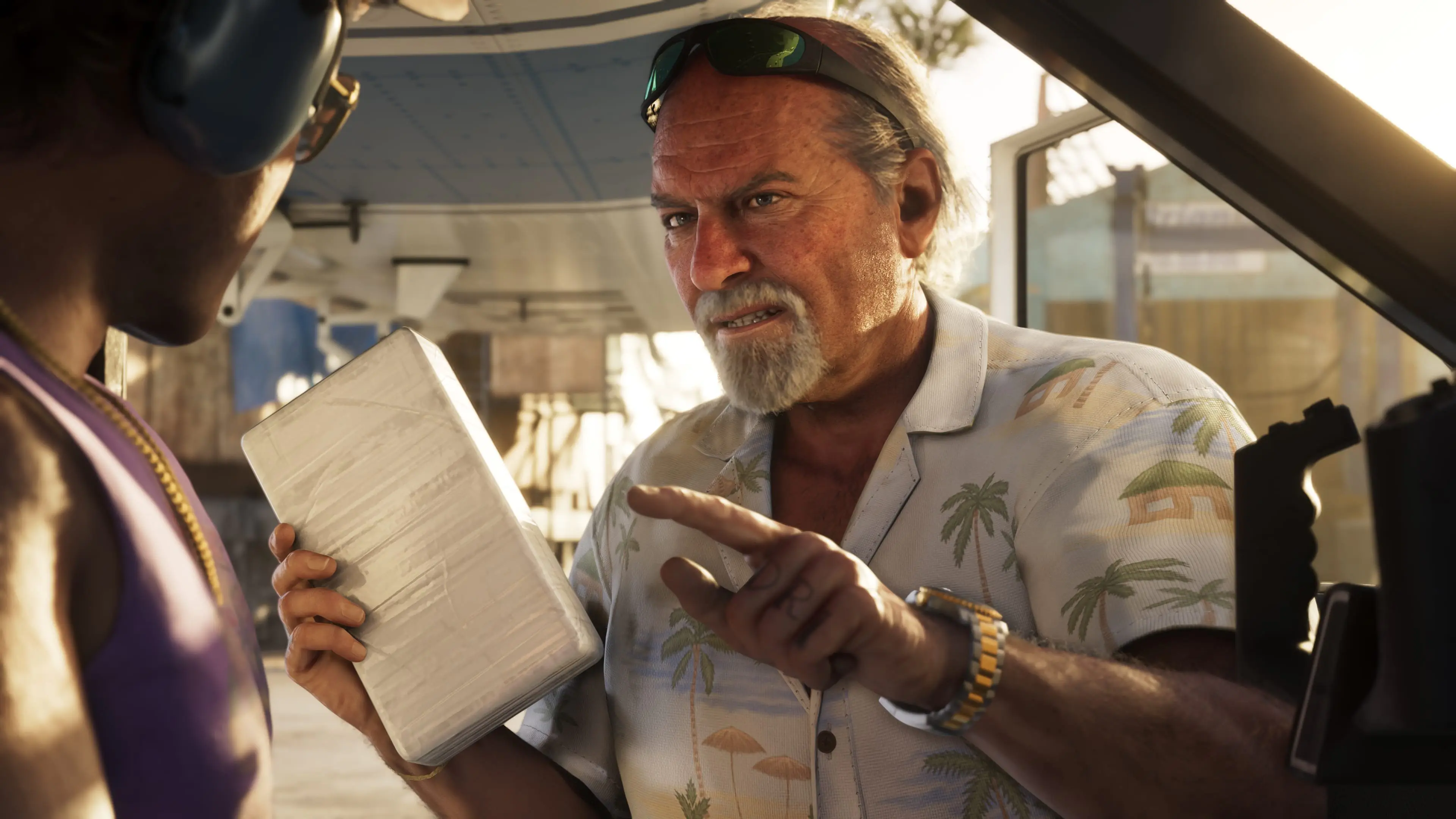 GTA 6’s First Confirmed Actor Revealed – And It’s a Big Name
Stephen Root, known from King of the Hill and Office Space, is officially voicing Brian Heder in GTA 6. Here’s everything you need to know.
 Diablo 5 Officially Announced at BlizzCon 2026
Blizzard officially announced Diablo V is in development at BlizzCon 2026. Arriving Spring 2029, the story takes a dark turn where Diablo has already won.
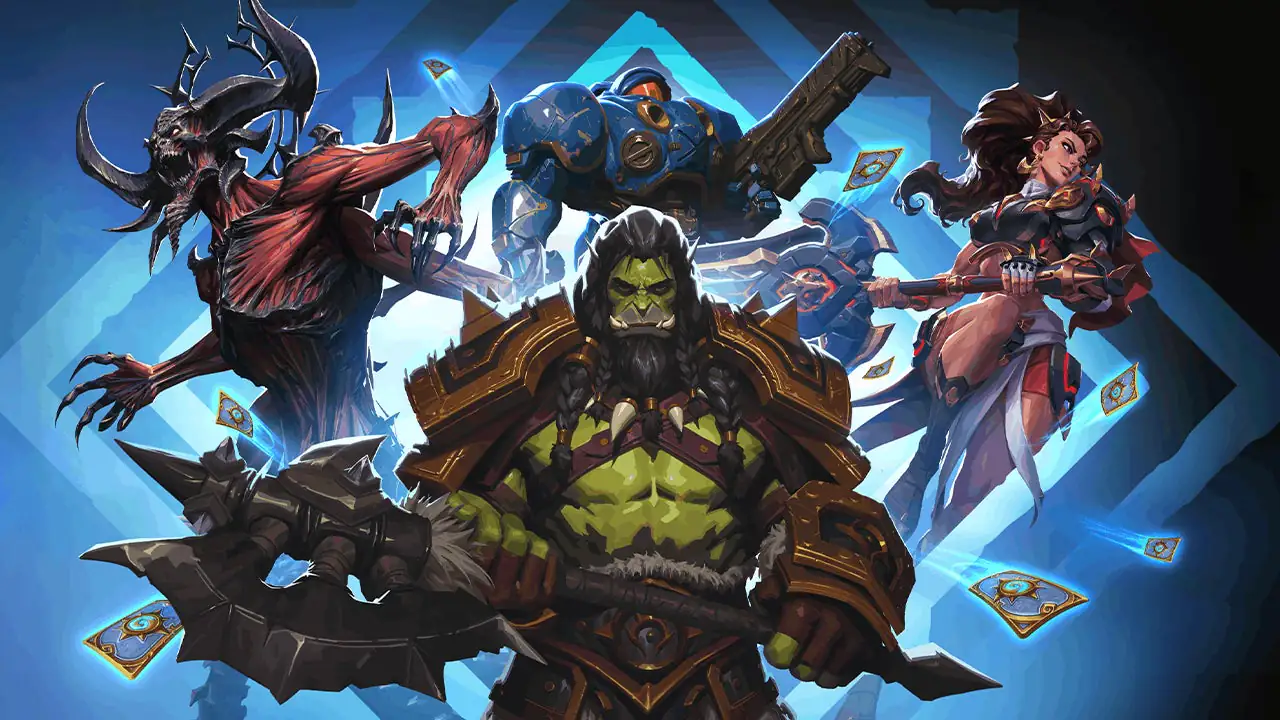 Everything Announced at BlizzCon 2026
From the surprise return of Heroes of the Storm to Diablo V, a brand-new StarCraft shooter, and Overwatch’s latest hero, here’s everything announced at the BlizzCon 2026 Opening Ceremony.
Products from authorized providers at fair prices.
24-Hour Nonstop and Fast Delivery Service.
24/7 Support Center
100% Satisfaction Guaranteed