



Secure Shopping
Products from authorized providers at fair prices.
Step-by-step activation guide for PS5, PS4, mobile app, and web browser.
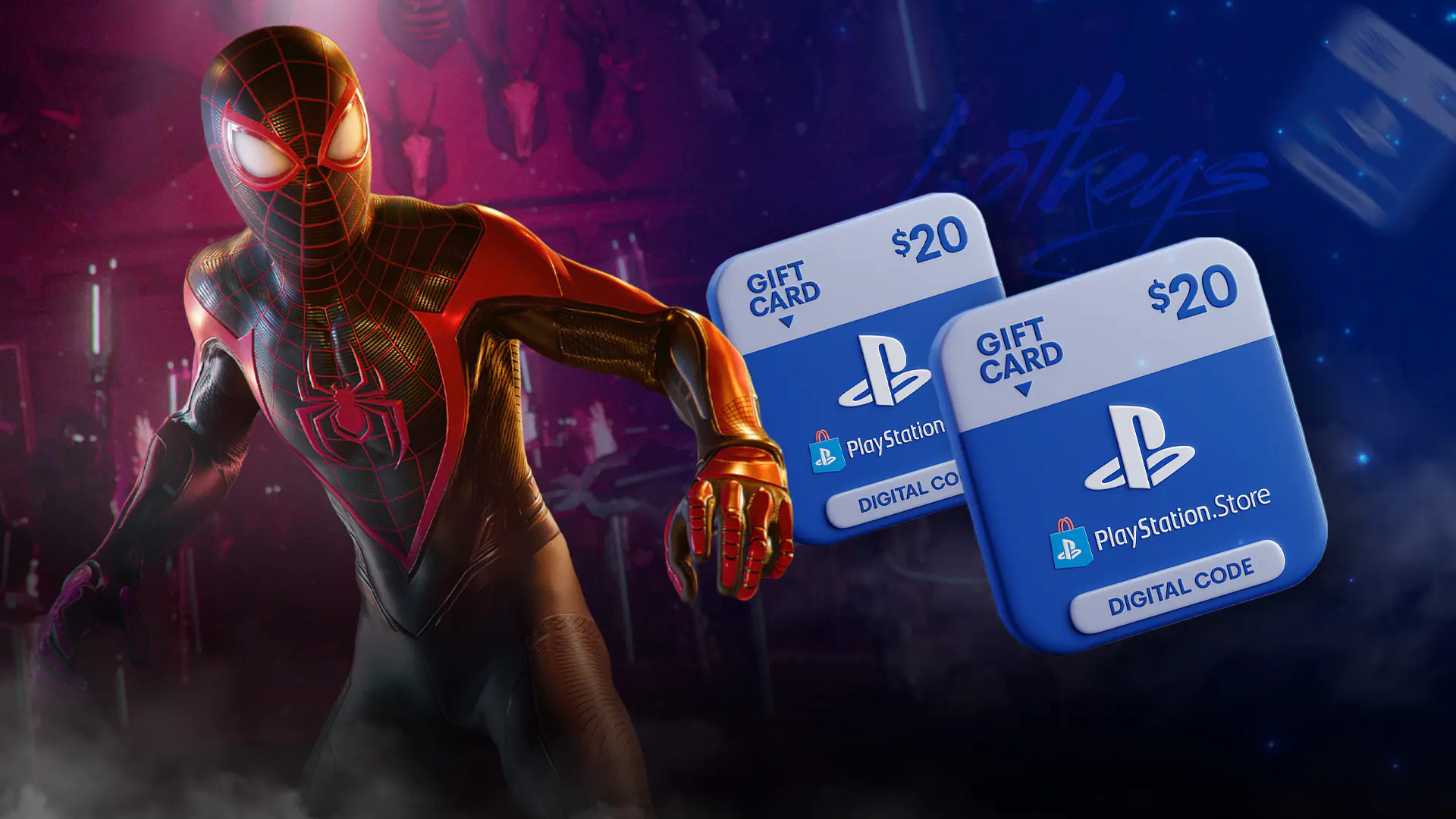
A PlayStation Gift Card (PSN Gift Card) is a prepaid activation code that can be used for all digital purchases on the PlayStation Network (PSN). Once redeemed, the card amount appears as a digital wallet balance on your account and can be used to pay for games, add-ons, subscriptions, and more on the PlayStation Store. Gift cards are available both physically (from retail or electronics stores) and digitally (as a 12-digit code sent via email). PSN cards sold in TRY are valid only on accounts registered to the Turkey region.
Note: PlayStation gift card funds do not expire. You can redeem your code at any time and use the funds whenever you want.
PlayStation 5 offers two easy ways to activate your gift card: through the Settings menu or directly from the PlayStation Store. Both methods only take a few steps.
1. Open Settings: Click the gear icon in the top right corner of the home screen.
2. Go to Users and Accounts: Select "Users and Accounts" from the menu.
3. Account - Payments and Subscriptions: Navigate to "Payments and Subscriptions" under "Account."
4. Redeem Codes: Click on "Redeem Codes."
5. Enter the 12-digit code: Carefully enter your gift card's 12-digit code, then press "Redeem."
1. Open PlayStation Store: From the home screen, select the shopping bag icon to access PS Store.
2. Click your profile icon: Go to your profile icon in the top right corner.
3. Redeem Code: Select "Redeem Code" and enter your code.
Tip: To avoid confusion between similar characters (like "O" and "0" or "I" and "1"), use a USB or Bluetooth keyboard instead of the virtual one when entering your code.
On PS4, gift card activation is done via the PlayStation Store app.
1. Open PlayStation Store: Access the PS Store icon from the content bar on the home screen.
2. Scroll down: In the left menu, scroll down to find "Redeem Codes."
3. Enter the code: Carefully input your 12-digit PSN code.
4. Confirm: Press "Continue." Your account funds will be updated instantly.
Note: For PS4, make sure to purchase DLCs for your games from the same regional store as the base game. Mixing regions may cause compatibility issues.
The PlayStation App is Sony’s official free app for iOS and Android. You can top up your gift card anytime, even if your console is turned off.
1. Open PlayStation App: Download from the App Store or Google Play and log in with your PSN account.
2. Tap the shopping cart icon: Go to your profile or shopping cart in the top right corner.
3. Select Redeem Code: Find "Redeem Code" in the menu.
4. Paste your 12-digit code: Use copy-paste for accuracy and to prevent errors.
5. Confirm: Tap "Redeem." Your funds will update instantly across all your devices.
Pro Tip: Copy the code directly from your email and paste it into the app for the fastest and most error-free activation.
You can also activate your gift card from any computer browser via the PlayStation Store website.
1. Go to store.playstation.com: Open the official PlayStation Store site in your browser.
2. Sign in with your PSN account: Click the sign-in button in the top right and enter your account details.
3. Click your profile icon: After logging in, click your profile avatar in the top right.
4. Open "Redeem Code": Select "Redeem Code" from the dropdown menu.
5. Enter your code and confirm: Input the 12-digit code and click "Continue." Your funds will be credited instantly.
For a fast, secure, and global experience, you can buy PlayStation Gift Cards instantly on Lotkeys.com.
Region Warning: PSN codes are region-locked. For example, a US code only works on a US-registered account. Always verify your account region before purchasing from Lotkeys.com.
Your PSN funds can be used for all digital content on the PlayStation Store. Here are the main uses:
Note: PSN funds can only be used for digital content on the PlayStation Store. Physical products (consoles, accessories) on PlayStation Direct or PlayStation Gear cannot be purchased with your PSN balance.
You may occasionally encounter errors when redeeming a gift card. Here are the most common issues and how to solve them:
Solution: The code region does not match your PSN account region. For a Turkey account, you must use a TR region code. Check your account region in your PSN settings.
Solution: The code was previously redeemed on another account or activated by the seller. If you purchased from an authorized seller, contact customer support.
Solution: This is usually a typo. Double-check for similar characters like "O" and "0," or "I" and "1." If possible, use copy-paste from your email to avoid mistakes.
Solution: This message usually means PSN servers are temporarily busy. Wait a few hours and try again. If the problem persists, clear your browser cache or try a different device or network.
Solution: Try restarting your console. Alternatively, complete the activation via web browser or PlayStation App. If the issue continues, switch to a different Wi-Fi network.
General Tip: If you bought a physical card from a store, make sure it was activated at the register. Unactivated cards will never work; the cashier must scan them at checkout.
Answers to the most common questions about PlayStation Gift Cards
No. PlayStation Store gift cards do not have an expiration date. You can redeem your code anytime and keep the funds on your account as long as you wish.
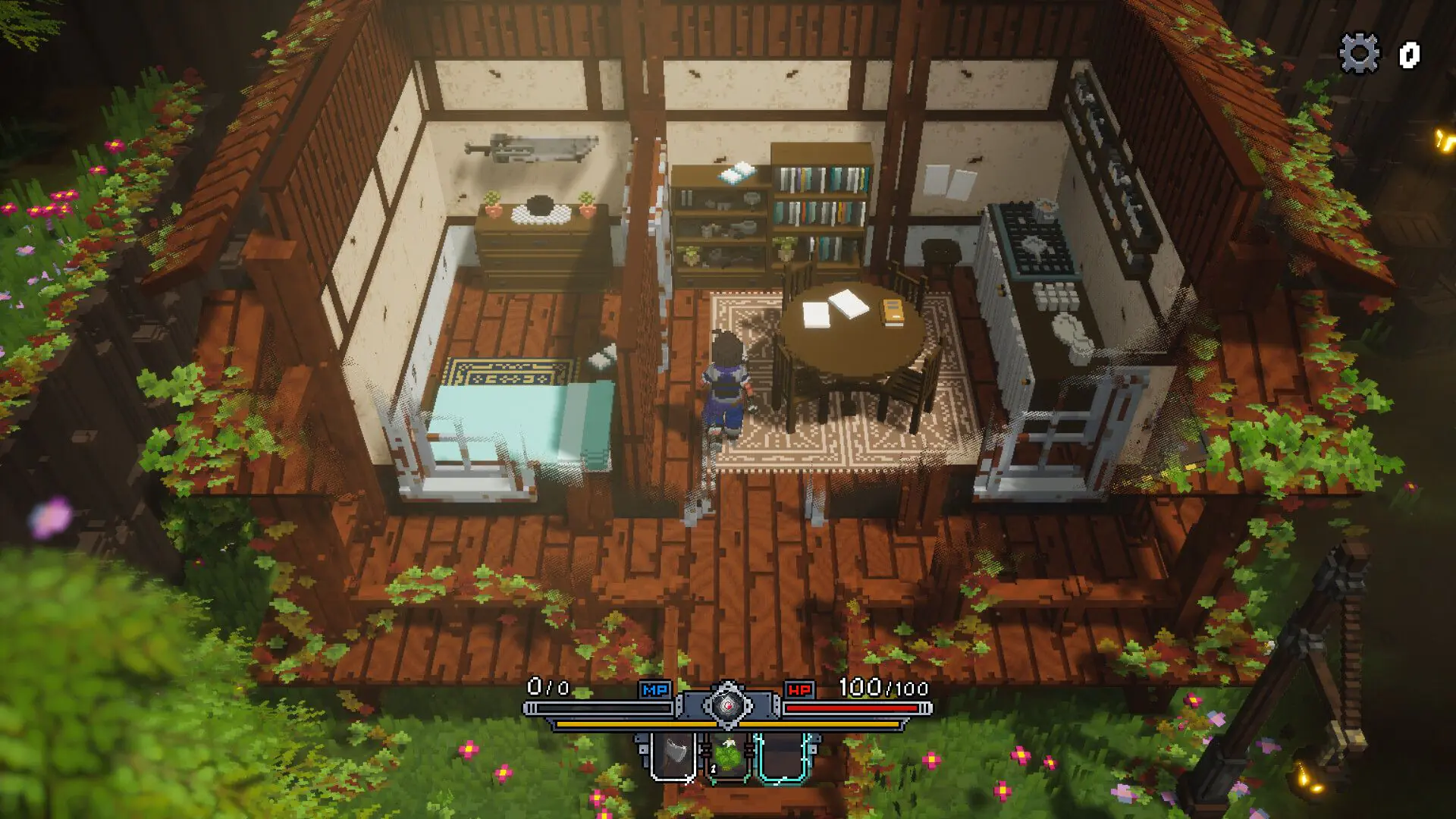 Emery Hearts Launches on November 11: Get Ready for a Voxel JRPG Adventure
Emery Hearts, the voxel-style indie JRPG drawing comparisons to Kingdom Hearts and Minecraft, lands on Steam November 11. All release date changes and gameplay details inside.
 October 15: A Blockbuster Release Day for PS5
On October 15, PS5 welcomes Castlevania: Belmont’s Curse, the first Crimson Desert story DLC, Tales of Eternia Remastered, and two Toy Story games—all on the same day.
 Full Server Browser Arrives in Battlefield 6: Everything You Need to Know
The full server browser Battlefield 6 players have been waiting for is coming in Season 5. Set up your own server, customize map rotation, and discover all the new features of Season 5 in this article
 What's Free in GTA Online This Week?
During GTA Online’s October Halloween event, grab free masks, T-shirts, and a weekly mission reward worth 2 million GTA$. GTA+ members can also claim a free Pegassi Oppressor.
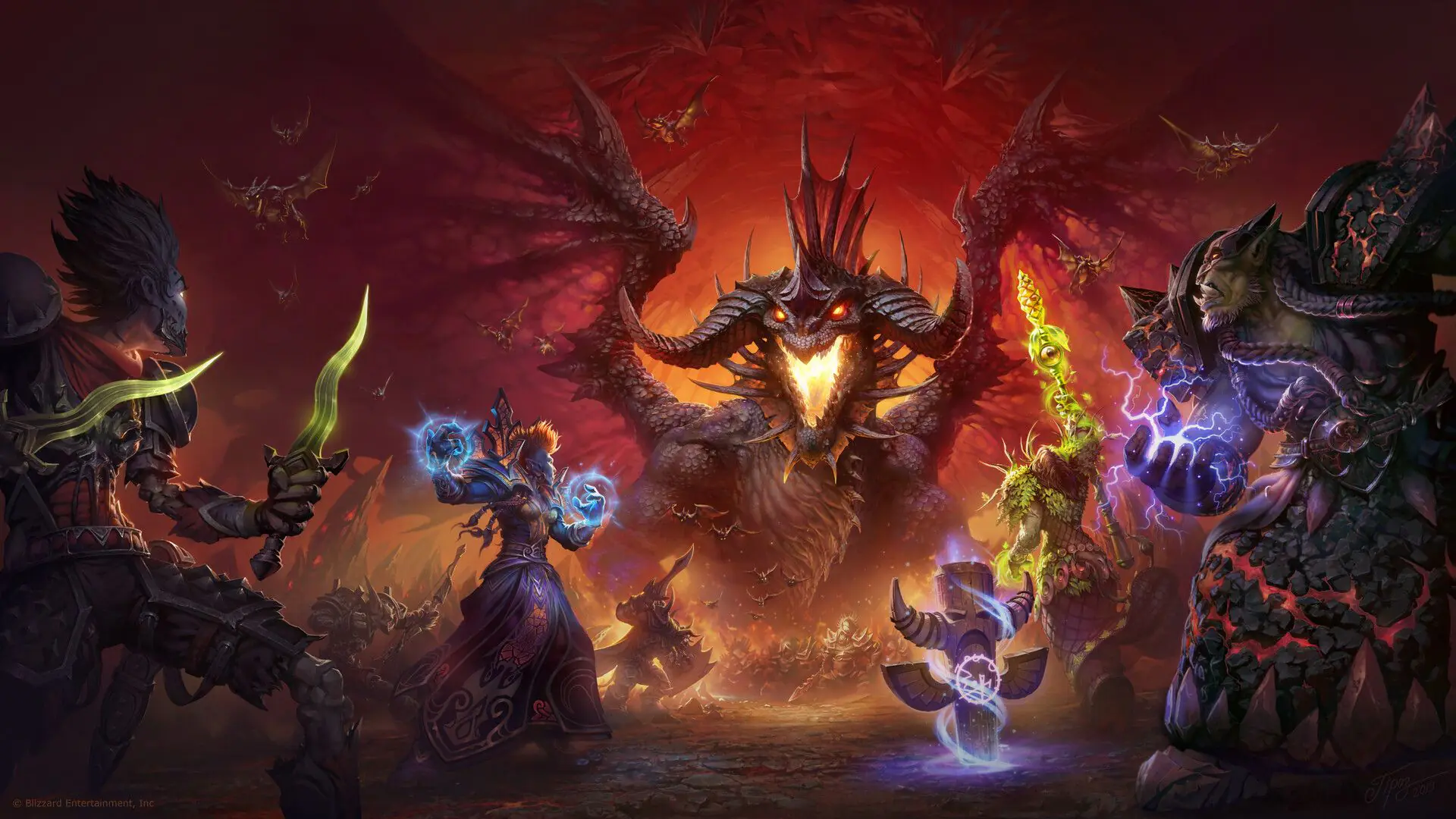 WoW Horde and Alliance Dice & Miniatures Hit the Tabletop This November
Hasbro’s Horde and Alliance miniatures arrive November 1, with the D&D x World of Warcraft sourcebook launching November 17. Sirius dice set release dates vary by source.
 GTA 6 Leak Frenzy: 25-Minute Gameplay Video Surfaces Online
A new 25-minute GTA 6 video has surfaced, allegedly leaked by Cyberleek. Here’s what’s confirmed, Rockstar’s response, and the latest on the November 19 release.
Products from authorized providers at fair prices.
24-Hour Nonstop and Fast Delivery Service.
24/7 Support Center
100% Satisfaction Guaranteed